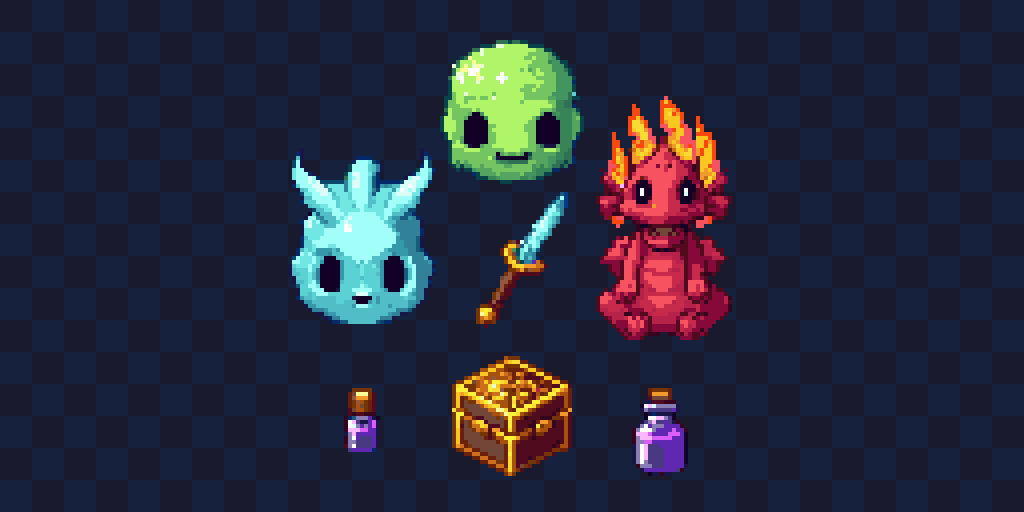
Generate Pixel Art Sprites with AI in Seconds
What if you could describe a character and have it appear on your canvas in seconds? With Pixelverse's AI Generation panel, that's exactly what you get.
How It Works
Type a description like "warrior knight with blue armor" and click Generate Sprite. Our AI models transform your words into authentic pixel art — complete with that classic retro aesthetic you love.
Three Powerful Models
Choose the right model for your needs:
- RD Fast: Quick generations with 15 styles — perfect for exploring ideas rapidly
- RD Plus: Higher quality output with 19 styles for polished results
- RD Animation: Creates animated spritesheets with walking cycles, idle animations, and VFX
Style Options
Each model comes with unique styles to match your vision:
RD Fast & Plus styles include: Default, Retro, Simple, Detailed, Game Asset, Character Turnaround, and many more pixel-art-specific options.
RD Animation styles:
- Four Angle Walking (48x48): Character walking in 4 directions
- Walking and Idle (48x48): Walk cycle plus idle animation
- Small Sprites (32x32): Compact animated characters
- VFX (24-96px): Spell effects, explosions, particles
Smart Prompt Enhancement
Not sure how to describe what you want? The Enhance Prompt section has you covered:
Generate New Ideas
Click the sparkle button to get AI-powered sprite ideas based on your selected style — powered by Groq's lightning-fast LLM.
Quick Ideas
Pre-built suggestions like "cute slime monster", "pixel art sword", or "treasure chest" to jumpstart your creativity.
Add Details
Context-aware modifiers that change based on your prompt. Type "dragon" and see suggestions like "fire breath", "wings spread", or "baby dragon cute". Type "sword" and get "glowing", "flaming", or "ancient" options.
General modifiers always available: Glowing, Cute, Dark, Shiny, Old, Fantasy.
Color Palette
Click any of the 8 color families (red, blue, green, purple, gold, silver, black, white) to expand 10 shade variations each — over 80 colors total. Clicking a shade like "sapphire blue" or "crimson" intelligently inserts it into your prompt.
Sprite Size Options
For single-frame generation (RD Fast/Plus), choose from:
- 16x16 — Icons and tiny sprites
- 32x32 — Classic game characters
- 64x64 — Detailed sprites
- 128x128 — Large, high-detail artwork
Animation sizes are fixed per style for optimal results.
Additional Options
- Remove Background: Toggle transparent backgrounds (on by default)
- Color Reference Grid (Animation only): Pick 9 colors for the AI to use as a palette reference
Pro Tips
- Be specific: "red dragon with gold horns" beats "dragon"
- Use the enhancer: Let AI suggest details you hadn't thought of
- Try different styles: Same prompt, different style = different results
- 32x32 or 64x64 work best for game characters
Try It Now
Open the AI Generation panel in the right sidebar, type a prompt, and hit Generate. Your next game character is just a few words away.
Ready to Create Pixel Art?
Try Pixelverse's AI-powered sprite editor - no account required.
Open Pixelverse Editor