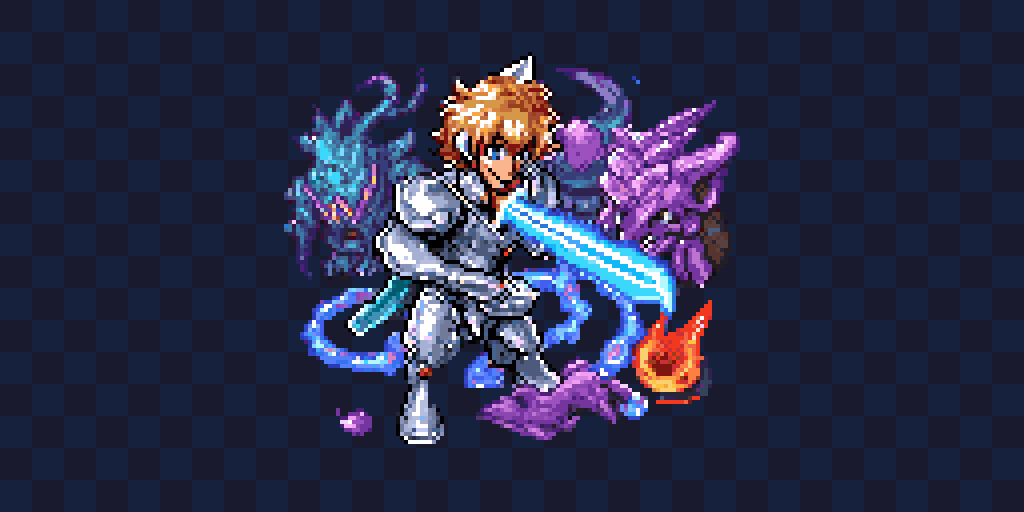
Level Up Your Pixel Art in 2026
Ready to create professional pixel art sprites for your game? Whether you're a complete beginner or an experienced pixel artist, Pixelverse gives you a complete workflow from AI generation to polished, animated sprites ready for any game engine. Let's walk through the entire process.
Start with AI: From Text to Pixels in Seconds
The fastest way to get started is with Pixelverse's AI generation tools. Instead of staring at a blank canvas, describe what you want and let Retro Diffusion models create a starting point:
For static sprites, use RD Fast or RD Plus with prompts like:
- "female knight with silver armor and blue cape, side view"
- "tiny slime monster, cute, green, game asset"
- "medieval treasure chest, closed, pixel art"
For animated sprites, switch to RD Animation and choose from four animation styles:
- Four Angle Walking (48x48): Perfect for top-down RPGs
- Walking and Idle (48x48): Side-scrolling platformer characters
- Small Sprites (32x32): Compact characters for retro-style games
- VFX (24-96px): Effects like explosions, magic spells, particle effects
The AI automatically splits animation spritesheets into individual frames, saving you hours of manual work.
Refine with Professional Editing Tools
AI gives you a great start, but the real magic happens when you refine the details. Pixelverse includes all the tools you need:
Drawing Tools:
- Pencil (P): Pixel-perfect drawing with adjustable brush size ([ and ] keys)
- Eraser (E): Clean up unwanted pixels
- Fill (F): Flood fill for large areas
- Eyedropper (I): Sample colors from your sprite
Shape Tools:
- Line (L): Perfect straight lines for swords, beams, architectural elements
- Rectangle (R): Ideal for platforms, buildings, UI elements
- Circle (C): Create shields, bubbles, rounded shapes
Selection Tool (S): Copy, paste, and move pixel regions with marching ants preview. Use Cmd/Ctrl+C to copy a selection, Cmd/Ctrl+V to paste it as a floating selection, then use your mouse to position it before pressing Enter to commit.
Organize with Layers
Professional sprites use layers to separate different elements. This makes editing non-destructive and keeps your workflow organized:
- Base Layer: Your character's body and main colors
- Details Layer: Eyes, armor details, clothing patterns
- Highlights Layer: Lighting and shine effects
- Shadow Layer: Shadows and darker tones
Adjust each layer's opacity to create transparency effects, toggle visibility to try different looks, and lock layers to prevent accidental edits. You can also reorder layers by dragging them up or down in the Layers Panel.
Bring It to Life with Animation
Static sprites are good, but animated sprites are unforgettable. Use the Animation Timeline to create smooth frame-by-frame animations:
Frame Management:
- Add frames with the + button or copy existing frames with Cmd/Ctrl+C → Cmd/Ctrl+V
- Navigate frames with , (previous) and . (next) or arrow keys
- Adjust frame duration from 50ms (fast attacks) to 1000ms (slow idles)
Onion Skinning (O): See ghost frames before and after your current frame to maintain smooth motion arcs. Adjust opacity with Cmd/Ctrl+, and Cmd/Ctrl+. to see more or less of the previous frames.
Animation Preview: Hit the Play button to preview your animation in real-time and fine-tune timing.
Export for Your Game Engine
When your sprite is ready, the Export Panel gives you multiple options:
PNG Export: Download single frames with 1x-10x scaling. Use 1x for authentic pixel art, or 4x-8x for social media and presentations.
Spritesheet Export: Export all animation frames in a customizable grid layout. Choose the number of columns to match your game engine's importer (Unity, Godot, GameMaker, etc.).
Copy to Clipboard: Instantly paste your sprite into Discord, Figma, or anywhere that accepts images.
Project Files (.pixelverse): Save your complete project with all frames, layers, and AI prompts. Press Cmd/Ctrl+S anytime to save your progress.
Pro Tips for Better Pixel Art
- Start with AI, finish by hand: Use AI generation to skip the blank canvas problem, then refine the details manually
- Use reference colors: Open the AI panel's color palette expander (80+ colors) to find perfect palette combinations
- Edit Mode for variations: Generated a sprite you like? Use Edit Mode with 40-60% strength to create variations while keeping the core design
- Animation timing matters: Not all frames need equal duration. Contact poses can be 50ms, while anticipation poses might be 150ms
- Layer strategy: Keep shadows and highlights on separate layers so you can adjust lighting without redrawing
- Onion skin for arcs: Enable 2-3 ghost frames to visualize motion paths for natural movement
Keyboard Shortcuts Cheat Sheet
Tools: P (pencil), E (eraser), F (fill), I (eyedropper), S (select), H (pan) Shapes: L (line), R (rectangle), C (circle) Brush: [ and ] to change size Zoom: +/- keys or Cmd/Ctrl + scroll wheel Undo/Redo: Cmd/Ctrl+Z / Cmd/Ctrl+Y Grid: Cmd/Ctrl+G Copy/Paste: Cmd/Ctrl+C / Cmd/Ctrl+V (works on selections AND frames) Commit Selection: Enter Cancel Selection: Escape Save Project: Cmd/Ctrl+S Frame Navigation: , and . (or arrow keys) Onion Skin: O (toggle), Cmd/Ctrl+, and Cmd/Ctrl+. (adjust opacity)
Try It Now
Ready to create your first professional sprite? Here's a quick starter workflow:
- Generate a base: Open the AI panel, type "cute robot character, side view, pixel art", click Generate
- Refine the details: Switch to Pencil (P), zoom in (+), add personality with custom details
- Add a second frame: Copy the frame (Cmd/Ctrl+C → Cmd/Ctrl+V), make small changes for idle animation
- Preview: Hit Play in the Animation Timeline
- Export: Open Export panel, choose PNG Spritesheet, download for your game
You're now ready to create professional pixel art sprites from scratch. Whether you're making an indie game, learning pixel art, or just having fun, Pixelverse gives you the complete toolset to bring your ideas to life.
Ready to Create Pixel Art?
Try Pixelverse's AI-powered sprite editor - no account required.
Open Pixelverse Editor