From AI Sprite to Playable Character: Using Pixelverse Assets in Unity and Godot
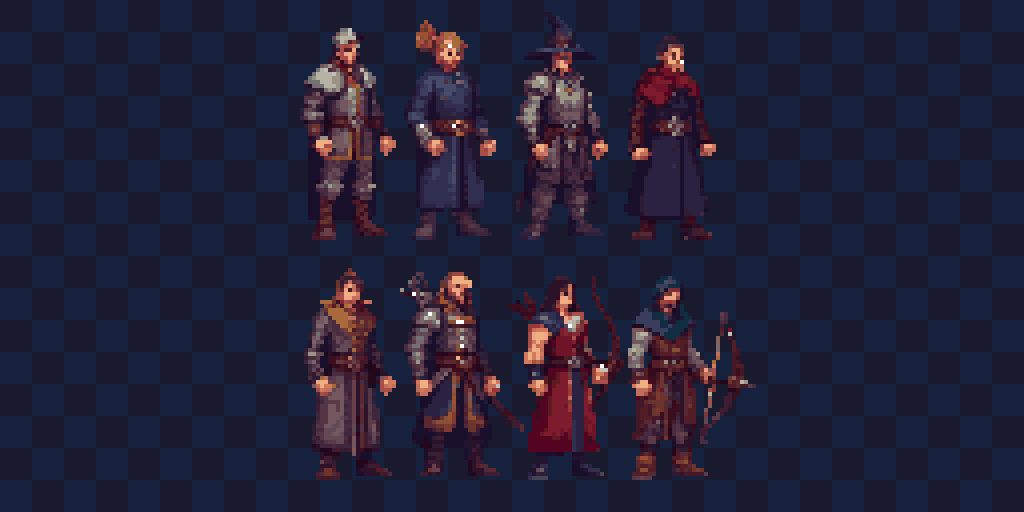
You've generated an amazing pixel art character using Pixelverse's AI tools. Now what? This guide walks you through exporting your sprites and importing them into Unity and Godot as fully playable characters with crisp rendering, smooth animations, and proper collisions.
Exporting from Pixelverse
Before jumping into your game engine, you need to export your sprites in the right format. Pixelverse offers several export options designed specifically for game development.
Spritesheet Export
For animated characters, the spritesheet export is your best friend:
- Open the Export Panel - Click the export icon in the right sidebar
- Choose Spritesheet - Select "Spritesheet (PNG)" as your format
- Configure Layout - Your frames will be arranged horizontally in a single row
- Export - Download your spritesheet with transparent background
Individual Frames
If you prefer working with separate images, export each frame as an individual PNG. This works well for simple animations or when your engine handles individual files better.
Pro Tips for Export
- Use power-of-two sizes - 16x16, 32x32, 48x48, or 64x64 work best for game engines
- Keep transparency - Pixelverse exports with transparent backgrounds by default
- Note your frame count - You'll need this when slicing the spritesheet
Setting Up in Unity
Unity makes it easy to import pixel art, but you need the right settings to keep those crisp pixels sharp.
Import Settings
After dragging your spritesheet into Unity's Assets folder, configure these settings in the Inspector. See Unity's Sprite Import Settings documentation for detailed screenshots of each option:
- Texture Type - Set to "Sprite (2D and UI)"
- Sprite Mode - Choose "Multiple" for spritesheets
- Pixels Per Unit - Match your sprite size (16 for 16x16 sprites)
- Filter Mode - Set to "Point (no filter)" for crisp pixels
- Compression - Set to "None" for best quality
Slicing the Spritesheet
Open the Sprite Editor and use the Slice tool. The Unity Learn Sprite Editor tutorial provides a visual walkthrough of this process:
- Type - Grid by Cell Size
- Pixel Size - Enter your sprite dimensions (e.g., 48x48)
- Pivot - Bottom center works well for characters
- Click Slice, then Apply
For more details on slicing options, see the Automatic Slicing documentation.
Creating the Animator
Set up your character animations using an Animator Controller. The Unity Learn Animator Controllers tutorial shows how to create states and transitions:
- Create an Animator Controller - Right-click in Assets > Create > Animator Controller
- Drag sprites to Scene - Unity auto-creates animation clips
- Set up transitions - Connect idle, walk, and other states
- Adjust sample rate - 8-12 FPS gives that classic pixel art feel
Collisions
Add a collider to your character. See the Box Collider 2D reference for configuration details:
- Box Collider 2D - Simple and performant
- Polygon Collider 2D - For more precise shapes
- Adjust the bounds - Match your character's visible pixels
Setting Up in Godot
Godot's 2D engine is perfect for pixel art games with built-in features for crisp rendering. The GDQuest Pixel Art Setup Guide provides an excellent visual overview.
Import Settings
After adding your spritesheet to the project:
- Select the image in the FileSystem
- In the Import tab, set Filter to "Off"
- Set Repeat to "Disabled"
- Click Reimport
Creating an AnimatedSprite2D
The easiest way to animate in Godot. Follow the official 2D Sprite Animation tutorial for step-by-step screenshots:
- Add AnimatedSprite2D node to your character scene (see AnimatedSprite2D docs)
- Create SpriteFrames - Click the empty SpriteFrames property
- Add animation - Name it "walk", "idle", etc.
- Add frames - Use "Add frames from Sprite Sheet"
- Configure grid - Enter your sprite dimensions
- Select frames - Click the frames for this animation
- Set FPS - 8-12 FPS for classic pixel art timing
Using Sprite2D with AnimationPlayer
For more control, use Sprite2D with AnimationPlayer:
- Add Sprite2D node - Assign your spritesheet as texture
- Enable Region - Check "Region Enabled"
- Set Hframes/Vframes - Match your spritesheet layout
- Add AnimationPlayer - Animate the "frame" property
Collisions in Godot
Add physics to your character using CharacterBody2D. See the Collision Shapes 2D guide for shape options:
- CollisionShape2D - Add as child of CharacterBody2D
- Shape - Use RectangleShape2D or CapsuleShape2D
- Size - Match your character's bounds
- One-way collision - Enable for platforms
Pixel-Perfect Camera
Keep everything crisp with Godot's pixel-perfect settings. The GDQuest setup guide has screenshots of each setting:
- Project Settings > Rendering > Textures
- Default Texture Filter - Set to "Nearest"
- Project Settings > Rendering > 2D
- Snap 2D Transforms to Pixel - Enable
- Snap 2D Vertices to Pixel - Enable
Animation Best Practices
Whether you're in Unity or Godot, these tips help your Pixelverse characters look their best:
- Consistent frame timing - Use the same FPS across animations
- Smooth loops - Ensure walk cycles loop seamlessly
- State transitions - Add brief transition animations between states
- Idle animations - Even a subtle breathing animation adds life
Common Issues and Fixes
Blurry sprites
- Check filter settings (Point in Unity, Nearest in Godot)
- Verify compression is off or set to lossless
- Ensure camera zoom is at integer values
Animation jitter
- Enable pixel snapping in project settings
- Keep character position on whole pixel values
- Match animation FPS to your game's physics rate
Collision misalignment
- Adjust collider offset to match visual bounds
- Use consistent pivot points across all frames
- Test at different screen resolutions
Try It Now
Ready to bring your AI-generated sprites to life? Head to the Pixelverse editor and create a character using rd-animation for pre-made walk cycles, or rd-plus for custom sprites you can animate frame by frame. Export your creation and drop it into Unity or Godot to see your pixel art running, jumping, and exploring in no time.
Resources
Unity Documentation
Godot Documentation
Ready to Create Pixel Art?
Try Pixelverse's AI-powered sprite editor - no account required.
Open Pixelverse Editor