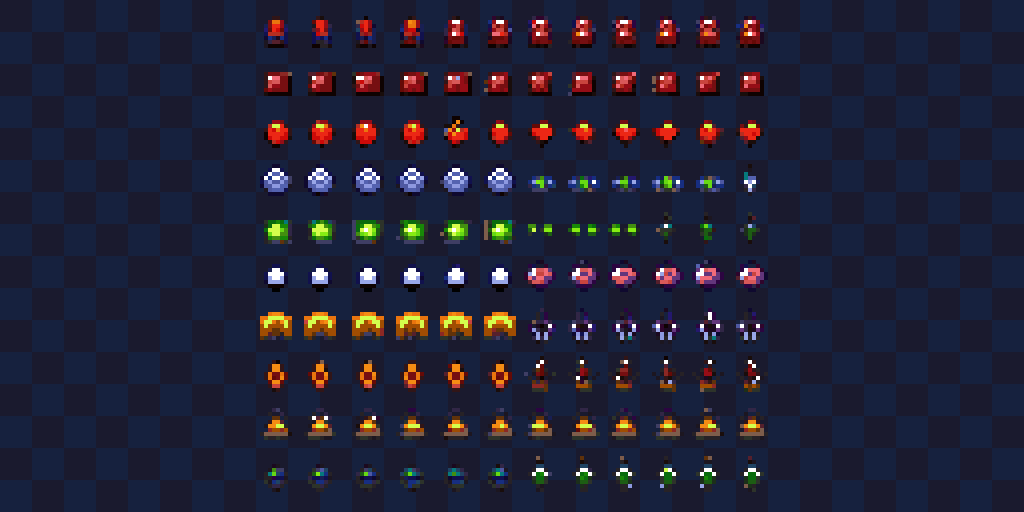
Creating Game UI Elements in Pixel Art: Buttons, Health Bars, and Icons
Your character sprite might be the star of the show, but great UI elements are the unsung heroes of game design. That health bar depleting during a boss fight, the satisfying click of a menu button, the icon that instantly tells players what item they just picked up—these small details make games feel polished and professional.
Today we're diving into pixel art UI design using Pixelverse. Whether you're building an RPG inventory system or a platformer's HUD, these techniques will help you create interfaces that are both beautiful and functional.
Why Pixel Art UI Matters
UI elements need to accomplish two things simultaneously: look good and communicate clearly. In pixel art, every pixel counts double because you're working with such limited resolution. A health bar that's beautiful but hard to read at a glance? That's a death sentence—literally, for your player.
The good news: constraints breed creativity. Limited pixels force you to focus on what matters, resulting in clean, iconic designs that players can parse instantly.
Health Bars and Resource Gauges
Let's start with the most essential UI element in action games: the health bar.
Basic Health Bar Structure
A readable health bar needs three layers:
- Background - The empty container (usually dark)
- Fill - The current health level (bright, saturated color)
- Border - The frame that contains it all
Quick recipe in Pixelverse:
- Use the Rectangle tool (R) to draw your border
- Fill (F) the interior with a dark color (#1a1a2e works great)
- Create a new layer for the health fill
- Draw the fill portion in a bright color (classic red: #e63946, or green: #2a9d8f)
Size Recommendations
- Minimal HUD: 32x6 or 48x8 pixels
- Standard: 64x10 or 80x12 pixels
- Detailed/RPG style: 100x16 or larger
Adding Depth
Plain rectangles work, but a little depth makes them pop:
- Add a 1-pixel highlight along the top edge of the fill (lighter shade)
- Add a 1-pixel shadow along the bottom edge (darker shade)
- Consider rounded corners using the Pencil tool—even 1-pixel corner cuts soften the look
Animated Health Bars
Want that satisfying drain effect when your player takes damage? Create two frames:
- Frame 1: Health at current level
- Frame 2: Health decreased with a lighter "ghost" showing where it was
Use copy/paste (Cmd/Ctrl+C → Cmd/Ctrl+V) to duplicate your health bar frame, then modify the fill. Export as a spritesheet and animate the transition in your game engine.
Mana, Stamina, and Secondary Resources
Secondary resource bars follow the same principles but should be visually distinct:
- Mana: Blues and purples (#4361ee, #7209b7)
- Stamina: Yellows and greens (#f4a261, #90be6d)
- Special meter: Golds and whites (#ffd60a, #fff)
Pro tip: Keep your primary resource (health) larger or more prominent. Secondary resources can be narrower or positioned less centrally.
Inventory Icons
Icons are where pixel art really shines. You have maybe 16x16 or 32x32 pixels to communicate "this is a health potion" or "this sword does fire damage."
The Silhouette Test
Great icons pass the silhouette test: if you fill the entire icon with black, can you still identify what it is? A sword should read as a sword. A potion should read as a potion.
Icon Size Guidelines
- 16x16: Perfect for inventory grids, minimal detail
- 24x24: Good balance of detail and compactness
- 32x32: Room for shading and small details
- 48x48+: Full detail, good for item inspection views
Weapons and Equipment
When drawing weapons:
- Exaggerate proportions - A sword blade should be prominent, not realistic
- Use diagonal lines - The Line tool (L) is your friend for blades and handles
- Add a single highlight - One bright pixel on the blade edge sells "shiny metal"
Consumables and Potions
Potion bottles are pixel art classics:
- Start with the bottle shape - rounded bottom, narrow neck
- Fill with liquid color - leave 1-2 pixels at top for "air"
- Add a cork or cap - brown or gray, 2-3 pixels
- Highlight the glass - one bright pixel suggests reflection
Using AI for Icon Bases
Pixelverse's AI generation works great for icon starting points:
Try these prompts:
- "pixel art sword icon, simple, game asset, 32x32"
- "pixel art red potion bottle, game item, transparent background"
- "pixel art treasure chest icon, closed, gold trim"
Generate at your target size, then refine with manual edits. The AI handles the basic shape; you perfect the details.
Buttons and Interactive Elements
Buttons need to look clickable. The classic approach: make them look 3D with highlight and shadow.
The 3D Button Technique
- Draw your button shape with the Rectangle tool (R)
- Add a light edge on top and left (1-2 pixels)
- Add a dark edge on bottom and right (1-2 pixels)
- This creates the illusion of a raised surface catching light from above-left
Button States
Professional UI has at least three button states:
- Normal: The 3D raised look
- Hover: Slightly brighter, or subtle color shift
- Pressed: Inverted shadows (dark on top, light on bottom) — looks pushed in
Create each state as a separate frame in Pixelverse, then export as a spritesheet.
Text on Buttons
Pixel fonts are an art unto themselves, but for buttons:
- Keep text minimal (one word if possible)
- Use high contrast (white or black text on colored button)
- Ensure at least 2 pixels padding around text
- Consider using icons instead of text where possible
Frames, Borders, and Containers
Every inventory screen, dialogue box, and menu needs containing elements.
The 9-Slice Technique
For UI that scales, design your borders as a 9-slice grid:
[corner][edge][corner]
[ edge ][fill][ edge ]
[corner][edge][corner]
Design your corners and edges, and the fill can tile infinitely. Pixelverse's selection tool makes copying these pieces easy.
Border Styles
- Simple: 1-pixel line, maybe with corner dots
- Double-line: 2-pixel border with 1-pixel gap
- Ornate: Decorative corners, varying thickness
- Themed: Match your game's aesthetic (stone for fantasy, metal for sci-fi)
Quick Border Recipe
- Draw outer rectangle with Rectangle tool (R)
- Select interior, delete to create hollow frame
- Add corner details with Pencil (P)
- Use Copy/Paste to duplicate for dialog boxes, inventory slots, etc.
Currency and Counters
Coins, gems, and score displays need to be instantly recognizable.
Coin Icons
The classic coin:
- Circle tool (C) for the base shape
- Slight oval works better than perfect circle (suggests 3D)
- Inner highlight - arc of lighter yellow
- Inner shadow - arc of darker gold/brown
Number Displays
For scores and counters:
- Design digits 0-9 as a sprite font
- Keep consistent width for each digit (monospace)
- 5x7 pixels is a readable minimum
- Add drop shadow for readability over gameplay
Minimap and Radar Elements
For games with minimaps:
- Player marker: Bright, distinct shape (triangle or arrow)
- Enemy markers: Red dots or hostile icons
- Objective markers: Pulsing or highlighted differently
- Terrain: Simple color blocks (blue for water, green for grass)
Keep minimap icons even simpler than regular icons—they need to read at a glance while the player focuses on gameplay.
Pro Tips for UI Design
- Consistency is king - Use the same border style, color palette, and spacing throughout your UI
- Test at 1x scale - If it's not readable at actual size, add more contrast
- Use layers - Keep borders, fills, and text on separate layers for easy editing
- Reference real games - Study UI from games you admire, pixel-by-pixel
- Limit your palette - UI elements should share colors with your game's palette
- Add feedback - Hover states, click animations, and color changes make UI feel responsive
- Leave breathing room - Don't cram elements together; whitespace is your friend
Exporting UI Elements
When you're ready to export:
- Individual elements: Export at 1x for authentic pixel art, or 2x-4x if your game scales up
- Spritesheets: Group related elements (all buttons, all icons) into organized sheets
- 9-slice pieces: Export corners and edges separately for your engine to assemble
- Keep transparency - UI elements almost always need transparent backgrounds
Try It Now
Open Pixelverse and challenge yourself: create a complete mini-HUD with:
- A health bar (64x10 pixels)
- Three inventory icons (16x16 each)
- A button with normal and pressed states (32x12 pixels)
Use layers to stay organized, reference your favorite games for inspiration, and remember: in pixel art UI, clarity always beats complexity. Your players will thank you every time they instantly understand what that icon means or feel the satisfying click of a well-designed button.
Happy designing!
Ready to Create Pixel Art?
Try Pixelverse's AI-powered sprite editor - no account required.
Open Pixelverse Editor